Posts

Custom Dialog With Call Back in Android

Image
What is Dialog in Android : A dialog is a small window that prompts the user to make a decision or enter additional information. A dialog does not fill the screen and is normally used for modal events that require users to take an action before they can proceed. Create Custom Layout :   If you want a custom layout in a dialog, create a layout and add it to an AlertDialog by calling setView() on your AlertDialog.Builder object or add it to  Dialod by calling setContentView() on your Dialog object. . Dialog Methods : cancel() : Cancel the dialog. dismiss() : Dismiss the dialog. Removing it from screen . setContentView(int resId) : Set the screen content from layout resource. setCanceledOnTouchOutside(boolean cancel) : Sets whether this dialog is canceled when touched outside the window's bounds.  setCancelable(boolean value) : Sets whether this dialog is cancelable with the BACK key.  requestWindowFeature(int featuredId) : Enable extend...

Toast in Android

Image
Android Toast is used to show sort message. Toast message takes only that amount of space that is required to show message, and during that time activity is visible and user can interact with it. Toasts automatically disappear after a timeout.                                                        Toast Usage : We can use Toast to show sort message as follows: Toast . makeText ( getApplicationContext(), "Your Message" , Toast . LENGTH_LONG ).show(); We need to pass 3 arguments in Toast.makeText(Context context,String message,int length) function as follows: Context: First argument is Context object String: Message which you want to display in Toast. int: third parameter  is duration. It can have values Toast. LENGTH_SHORT or Toast. LENGTH_LONG Set Position of Toast :    We can change the position...

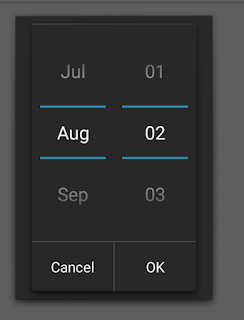
Disable/Hide Year from DatePickerDialog in android

Image
DatePickerDialog in Android is the most essential part . We can easily customize DatePickerDialog in Android . Here is the example to disable/hide Year from DatePickerDialog in Android .   The given bellow code will work from API 5.0+ DatePickerDialog Constructor :  1. Context  : Require Application context  2. new DatePickerDialog.OnDateSetListener(){         onDataSet()  // this method execute when user select date and press ok button           {            a. Year  // selected year            b. Month // selected month , it's return previous month. Suppose you select March then it return 2 insted of 3 .            c. Day  // selected date       }     } ...